
Activate Avette
Another Mac? Open this page on it and follow the same steps.
Your license key is below. Three steps:
Next: open Avette, then activate this Mac.
-
Download Avette for macOS
Downloaded. Not on this Mac? Download it again.
macOS 26 or later · Apple Silicon, M2 or later recommended
Open the disk image and drag Avette to Applications, or open Avette from it and let it move itself there. No installer, no password.
-
Open Avette
It walks you through its setup: the keyboard and the microphone.
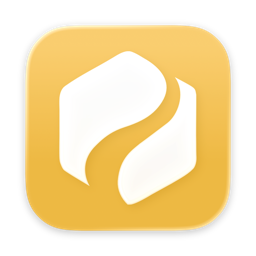
In your Dock and in Applications, Avette looks like this. While Avette runs, this mark in the menu bar is Avette: click it for its menu. -
Activate this Mac
Once Avette is on this Mac, this button opens it and activates it with your key.
Nothing happened? Avette isn't on this Mac yet: download it (step 1), open the disk image, then click again.
Or paste your key by hand, in Avette's Settings → License:
—
Stuck somewhere? Troubleshooting has the fixes, and Avette's Settings → Help → Export diagnostics gives us what we need to help.
The button in the email that came with your license opens this page with your key.
Have a license? Sign in with the address it was sent to, and this page finds your key.
If you’re trying to manage an existing license, head to your account. Lost your key? Email avette@bearcove.eu.
No license works with the address you're signed in with. Buy Avette, or sign out and sign in with another address.
If you’re trying to manage an existing license, head to your account. Lost your key? Email avette@bearcove.eu.